 The Houston Linux User Group
Setting up an Google Calendar
The Houston Linux User Group's calendar may be integrated into any Gmail account, such that as the group modifies events, they will change in your Gmail calendar. Your calendar details remain unchanged and are private, but your calendar applications will additionall pull the Houston Linux events and add them to your calendar display. You may hide or show the details of our meetings as you see fit.
Instructions
First log into Google using a web browser. If you are working on a cellphone take care not to permit the web browser to redirect you to the cell phone applications handling Gmail or Google's Calendar, as these applications lack the necessary options to add a calendar, and won't match the procedure.
Navigate from Gmail
From Gmail, open the applications menu by using the 3x3 grid of dots next to your user icon.

This will open a pop-up menu which displays all the available Google applications. In that menu, select the calendar application.
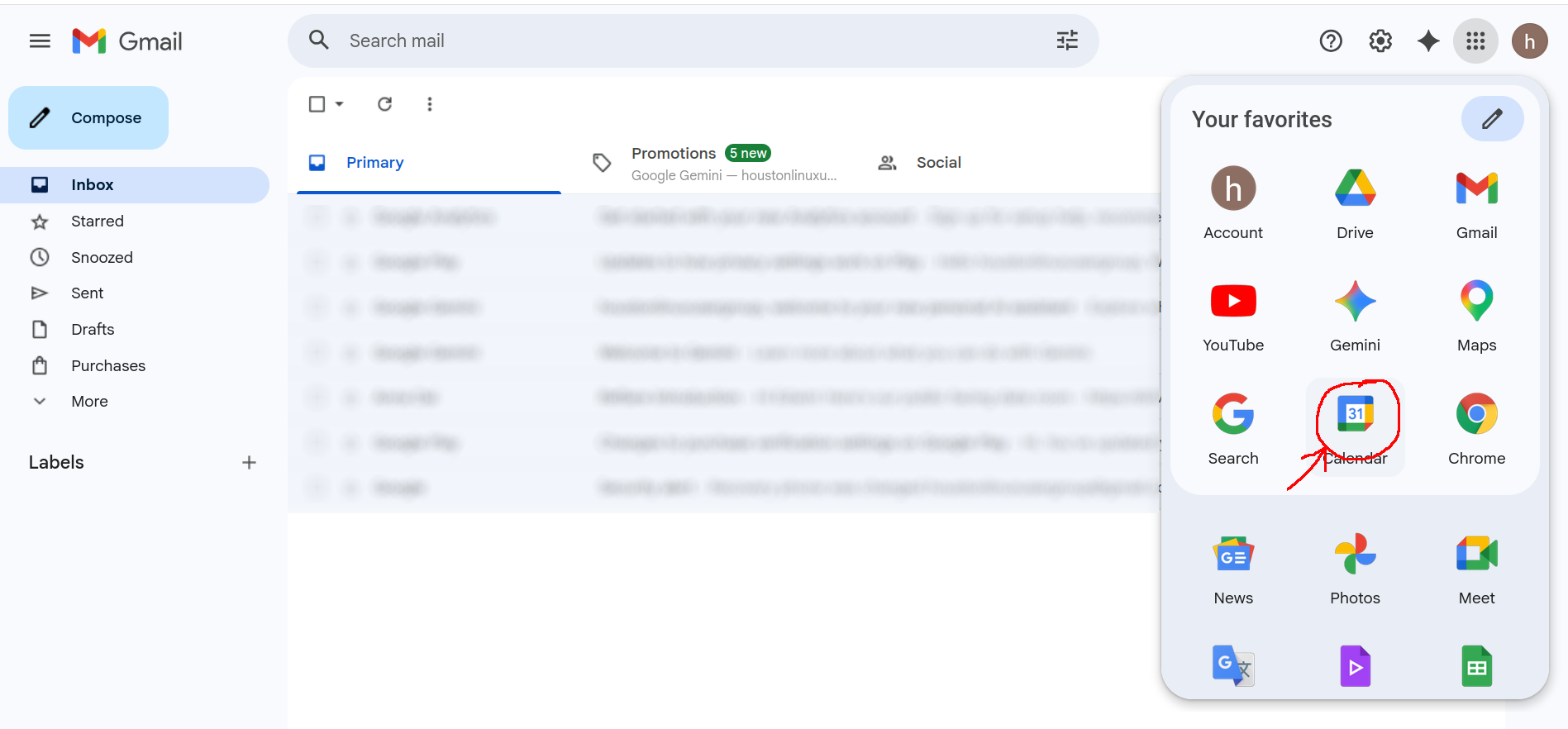
Opening the Calendar Configuration
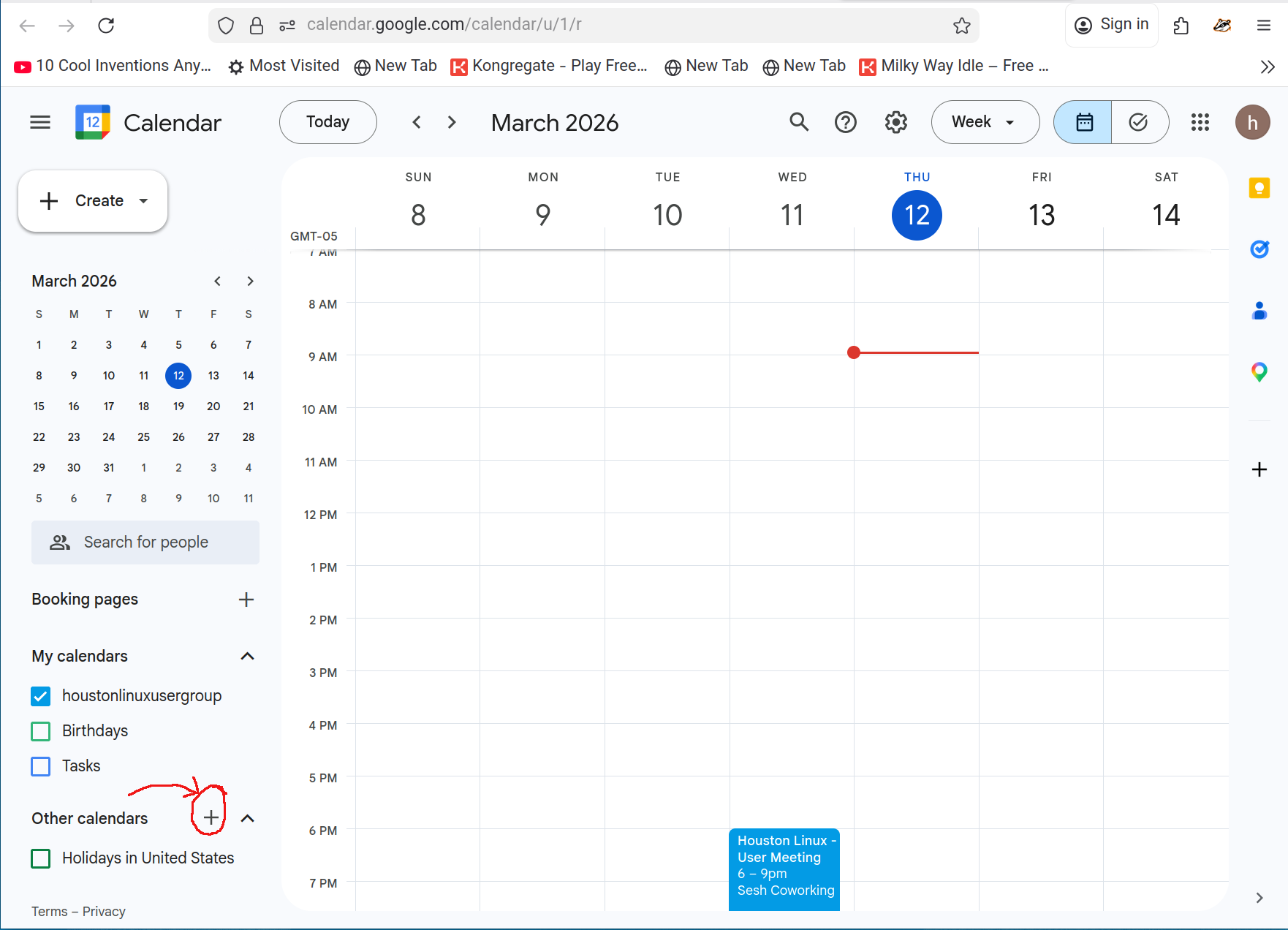
Locate the “Other calendars” listing in the sidebar, and press the plus sign “+” to add another calendar.
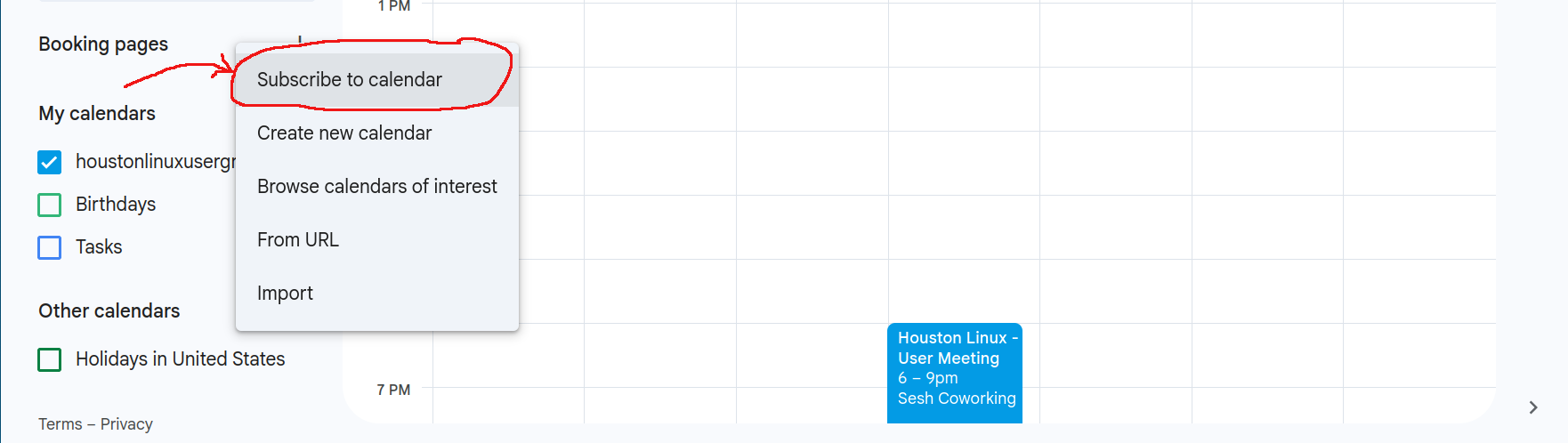
This will open a pop-up menu that gives you different ways you can add another calendar. Select the option to “Subscribe to calendar”.
Adding the Houston Linux User Group Calendar
Now that the calendar subscription configuration page is open, locate the “Add Calendar” input entry box.
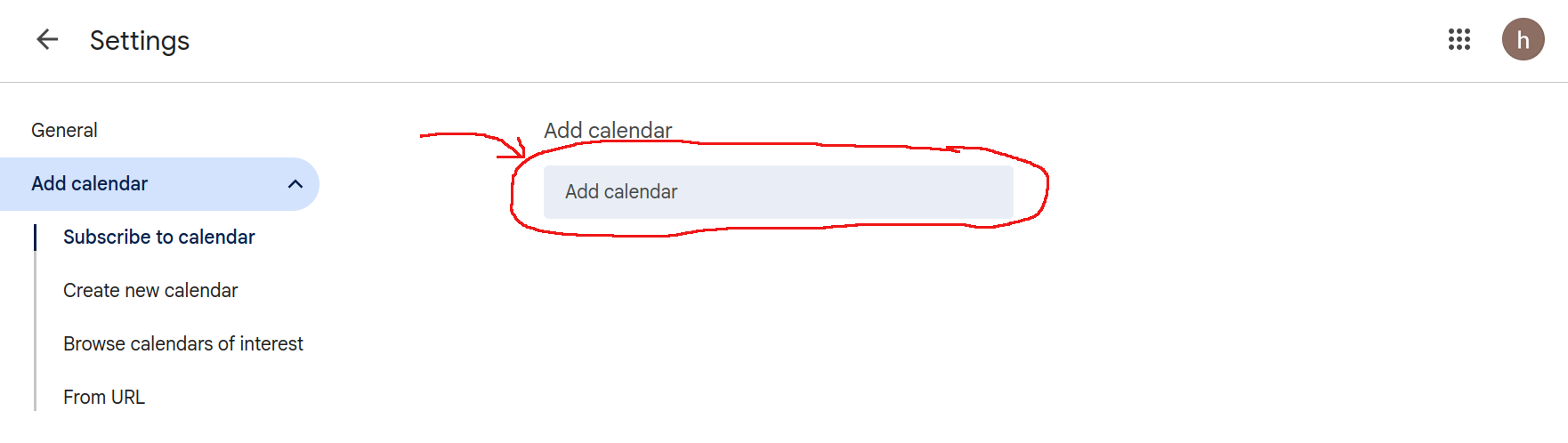
Type into that box the account name for the calendar: houstonlinuxusergroup@gmail.com.
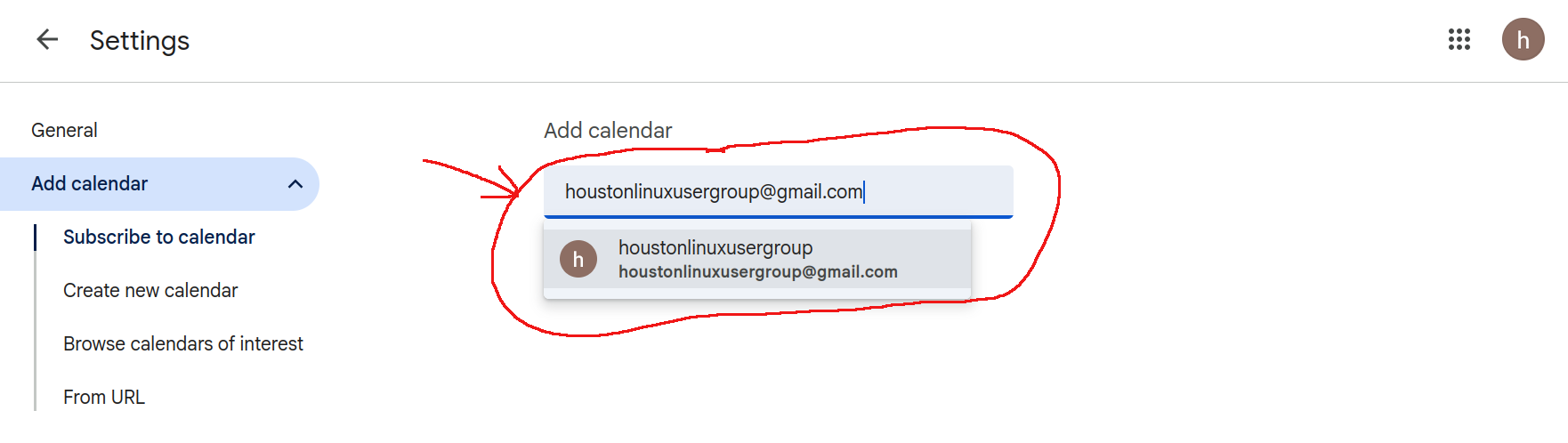
and press the “enter” key. This will shift the display to show you the details of the added calendar, providing you with additional options to rename the display name of the calendar and how you want it handled within your Google account.
Waiting for the Calendar to Appear
As phones, calendar clients, and calendar tools poll their subscribed calendars periodically, and as calendar information tends not to change rapidly, they don't always poll frequently. If you don't see the information on a phone or calendar application, give everything five minutes for all systems to sync up their configurations.
If you still cannot see the information sync up, verify you configured the calendar correctly by pulling up the calendar subscription information. If that seems to be correct, reach out to the Houston Linux User Group and we will assist as best we can.